Appearances#
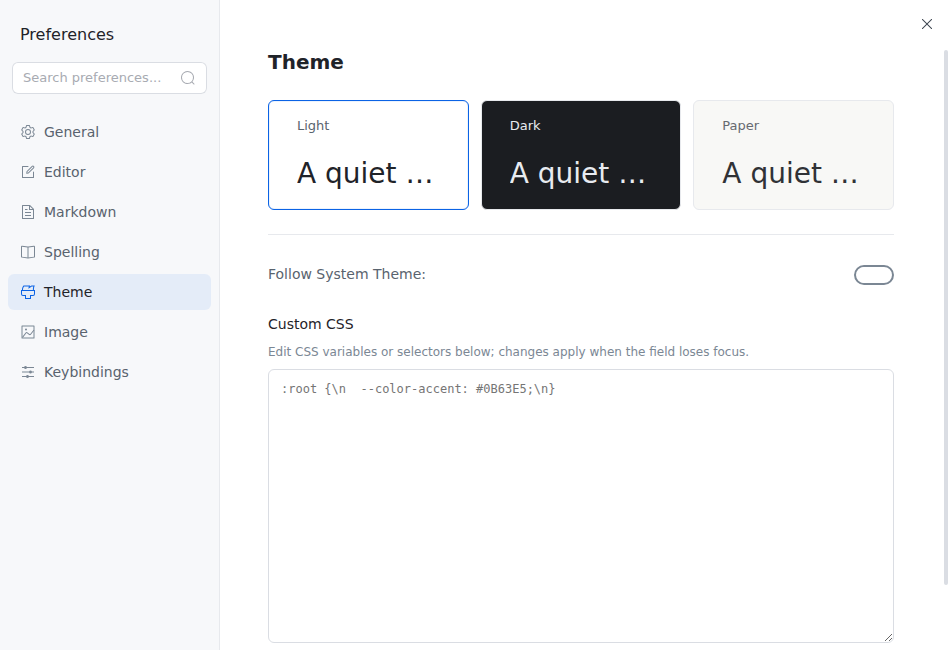
Inkiva has three focused application appearances: Inkiva Light, Inkiva Dark, and Inkiva Paper. They share the same writing-first design language while adapting surface, contrast, and syntax colors to different environments.
The names below match the labels shown in the Theme menu. The appearance IDs are light, dark, and paper.
Inkiva Light#
The default appearance: a clean white editor surface, restrained gray chrome, and Inkiva blue for focus and interaction states.
Inkiva Dark#
A charcoal editor surface with softened contrast, designed for comfortable long sessions without turning the whole interface into a high-contrast panel.
Inkiva Paper#
A warm paper surface with quiet beige chrome and dark ink-colored text, intended for reading and writing in softer ambient light.
Switching appearances#
You can switch appearances in several ways:
- Menu: Open
Themeand select Inkiva Light, Inkiva Dark, or Inkiva Paper. - Preferences: Open
Preferences→Themeto preview and select an appearance. - Follow System: Enable
Follow System Themeto switch between Inkiva Light and Inkiva Dark with your operating system. Inkiva Paper remains an intentional manual choice.
Markdown styling and application chrome use separate design layers, so the writing surface stays consistent while the application remains calm and legible. Custom CSS is an optional, explicit override applied after the selected appearance.
The Theme preferences page provides a visual preview of the three built-in appearances: