Basics#
Getting started#
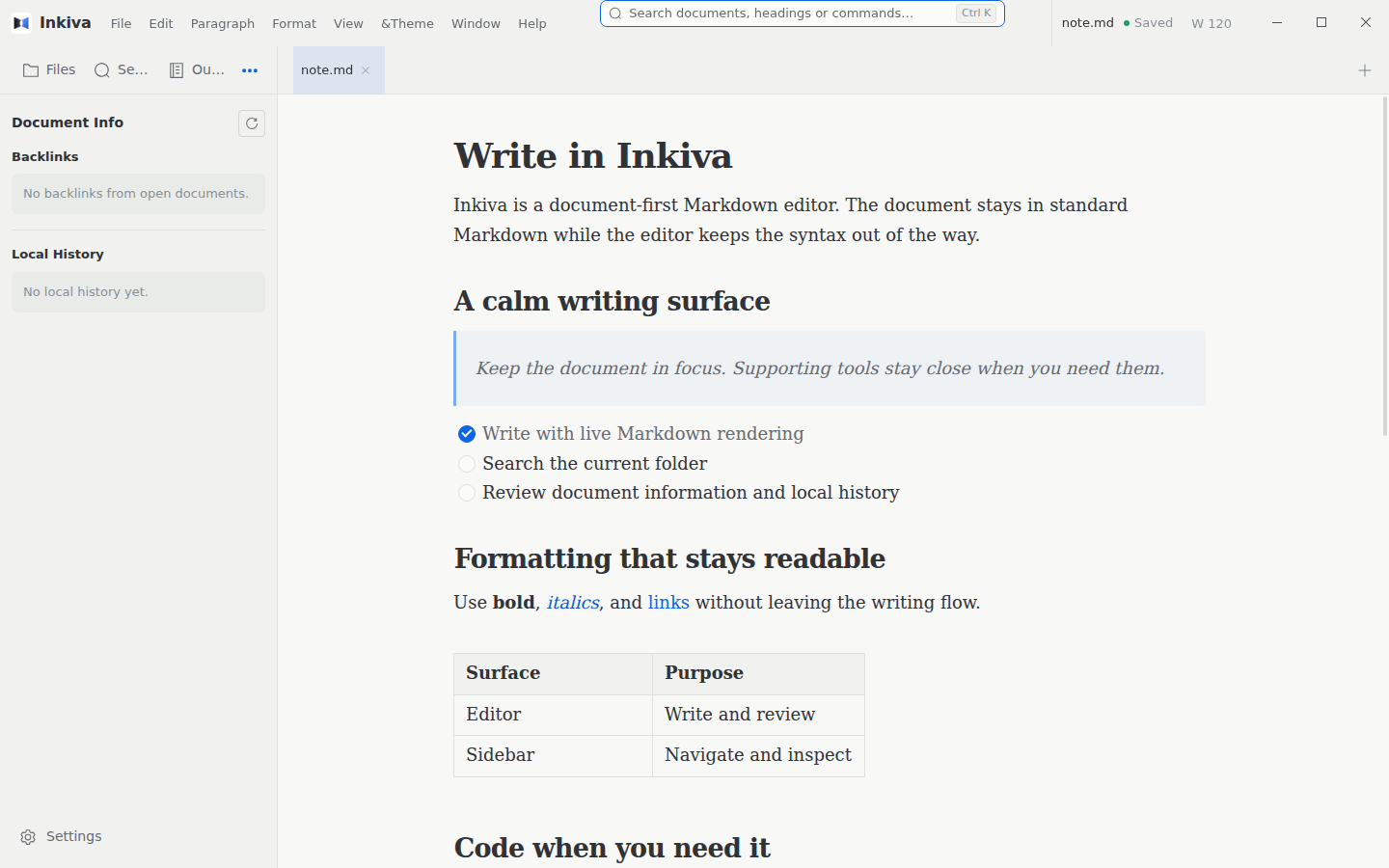
Inkiva is a document-first Markdown editor. It opens ordinary CommonMark/GFM files and folders, and its preview editor keeps most Markdown punctuation out of the way while you write. When the application starts without a restored session, the welcome surface offers Recent Documents, New File, and Open file.
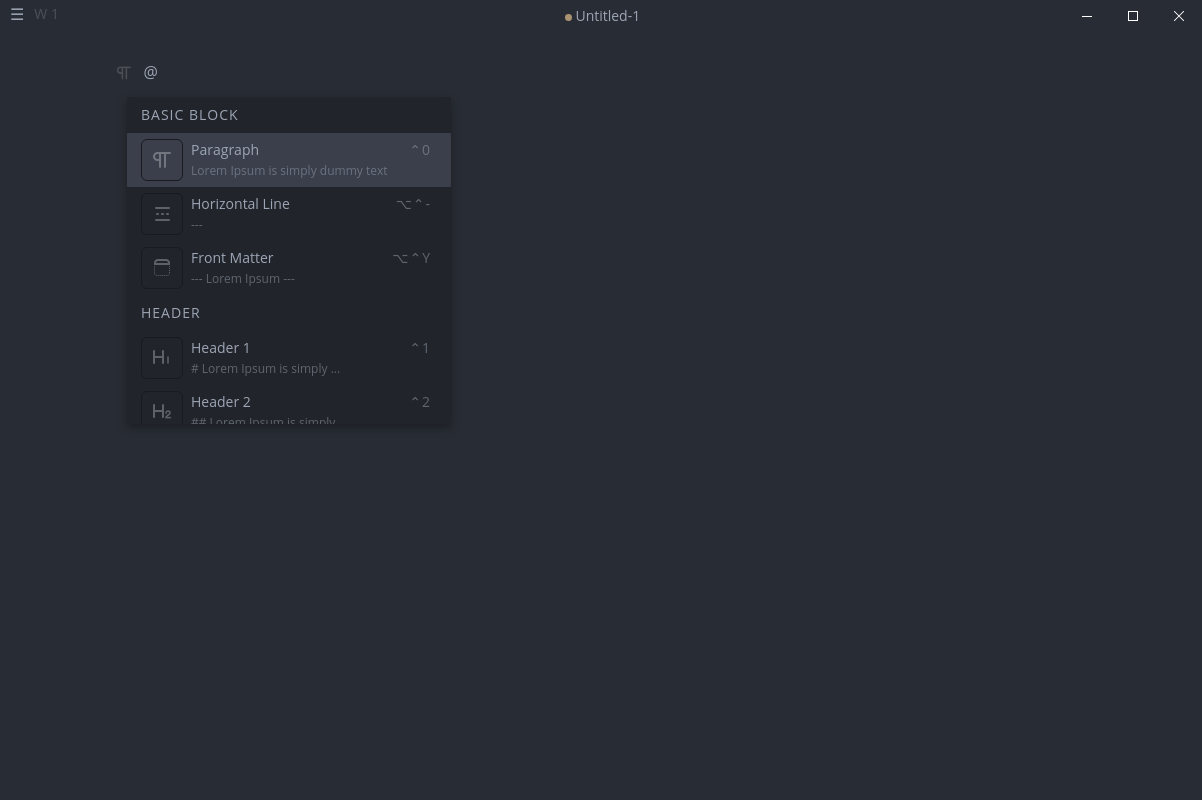
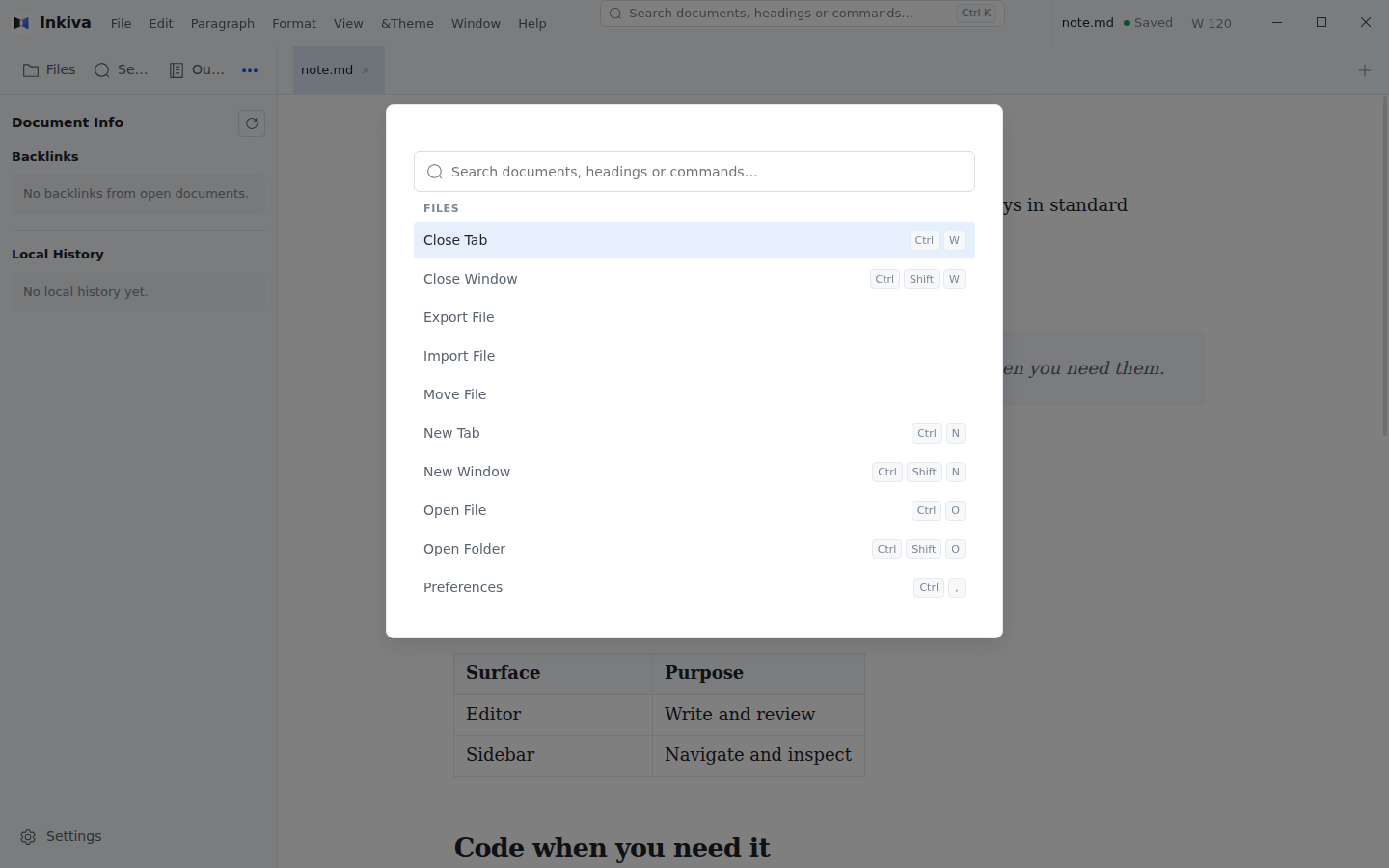
The titlebar command launcher opens search for documents, headings, and commands. You can click it or press CmdOrCtrl+Shift+P. In an empty paragraph, type / to open the quick-insert menu; choose an item to turn that paragraph into a heading, list, quote, table, or another supported block.
Interface#
Sidebar#
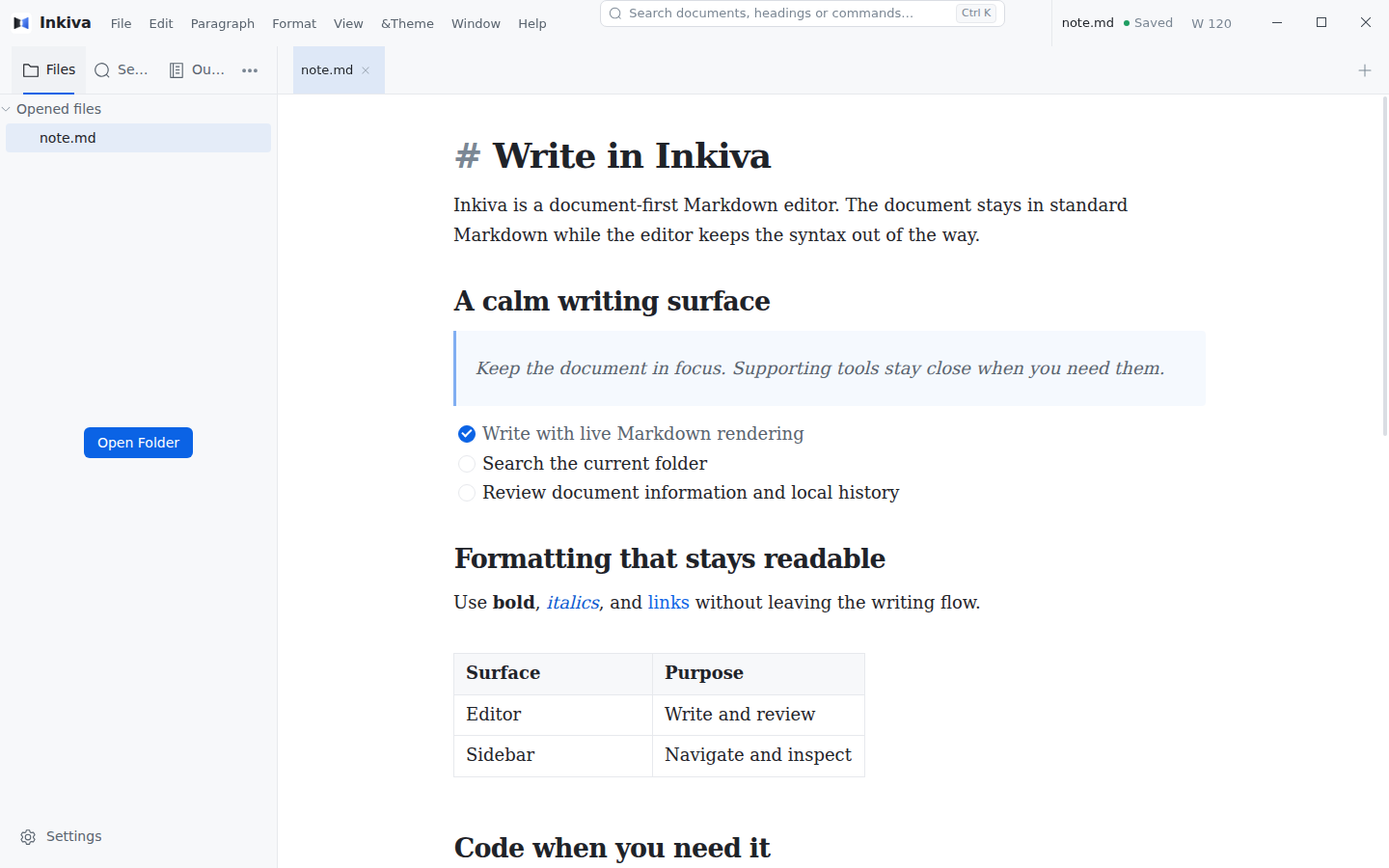
The optional sidebar is organized around the current document and folder:
- Files shows the opened folder tree and its Opened Files subsection.
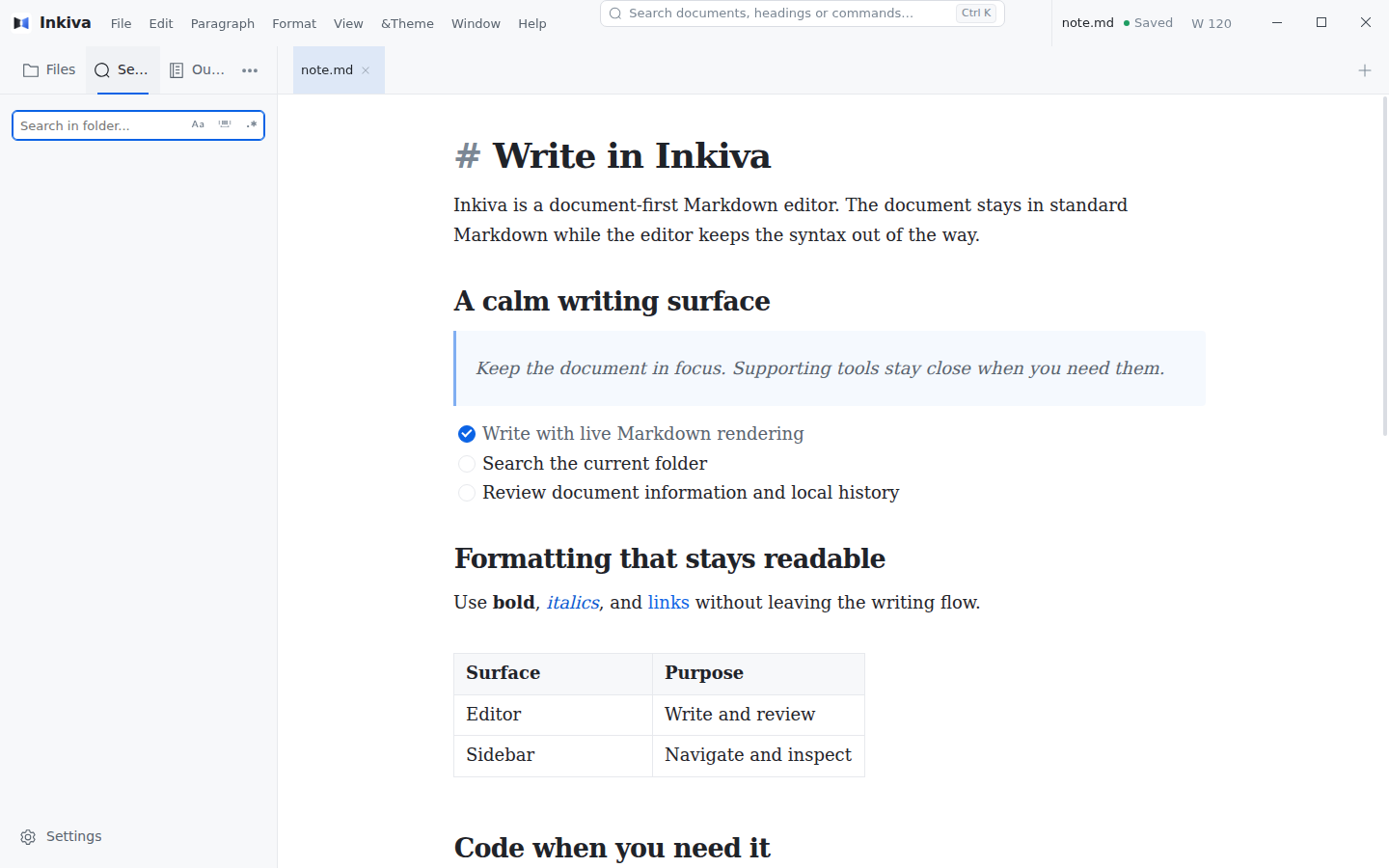
- Search searches the opened folder with filters for the search mode.
- Outline shows headings from the selected document.
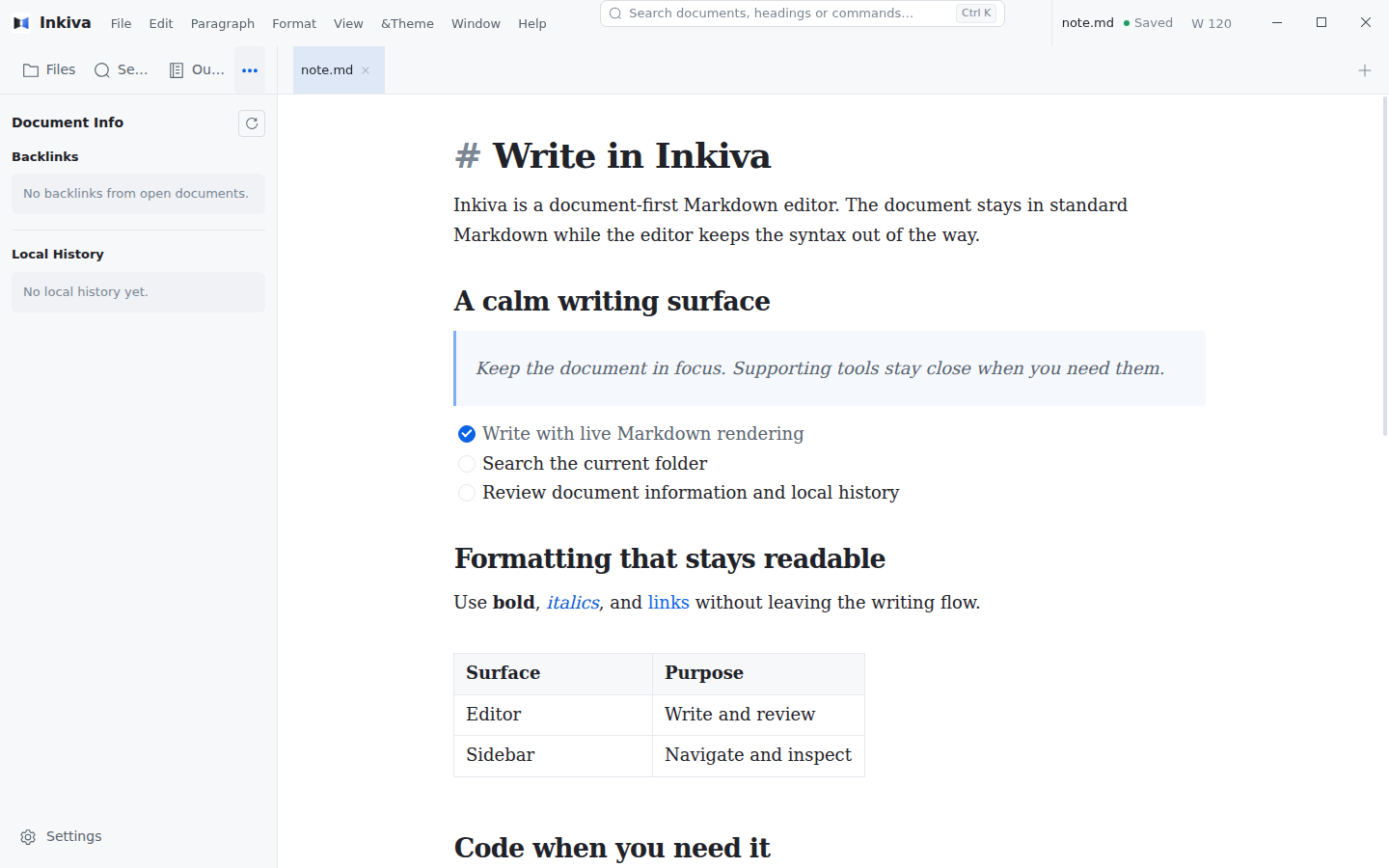
- More → Document Info provides Backlinks and Local History.
Use the sidebar controls or View → Toggle Sidebar. The default Typora shortcut is CmdOrCtrl+Shift+L; custom keybinding styles can change it. The openedFilesInSidebar preference controls the Opened Files subsection.
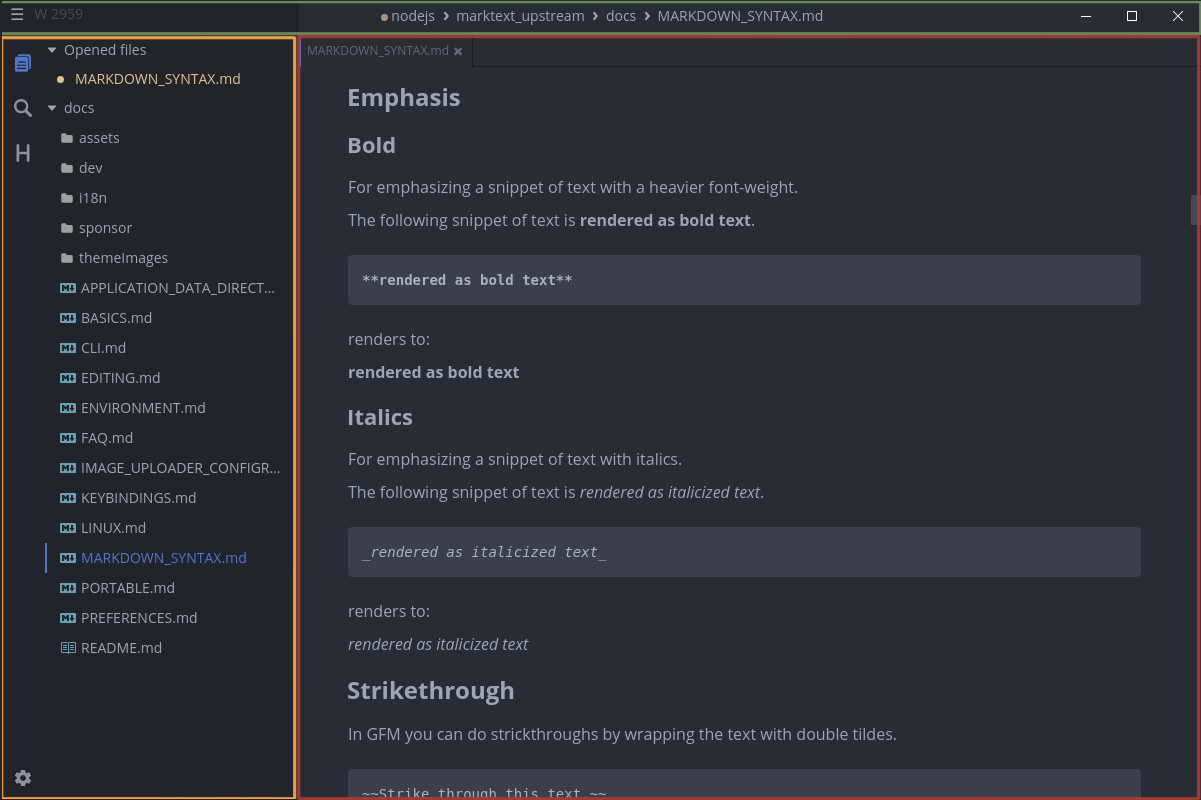
The Files, Search, and Document Info panels are shown below.
Tabs and split view#
Each open document can appear in a tab. Drag tabs to reorder them, use the tab context menu for file actions, or hide the tab bar and work from the sidebar's Opened Files list. View → Split Editor opens a second document pane; use the pane controls to choose which pane is the active editor.
Quick Open and the command launcher#
Quick Open (CmdOrCtrl+P) finds Markdown files in the opened folder and already-open documents. The command launcher searches commands, headings, and documents from one place.
Editor modes#
Inkiva opens documents in the formatted preview editor by default. View → Source Code Mode switches to the raw Markdown editor for precise syntax editing. In the default Typora shortcut style, source mode is CmdOrCtrl+/, focus mode is F8, and typewriter mode is F9. See Key bindings for the preset and platform-specific tables.
Open, edit, and save files#
Open a file#
Choose File → Open File or press CmdOrCtrl+O. You can also pass a file path or folder to Inkiva from the command line.
Open a folder#
Choose File → Open Folder or press CmdOrCtrl+Shift+O. The folder becomes the root for the Files panel, Quick Open, and in-folder Search.
Save changes#
Choose File → Save or press CmdOrCtrl+S. File → Save As writes the document to a new path. Inkiva marks unsaved changes in the tab and titlebar; automatic saving is enabled by default and can be adjusted in Preferences.
Appearances#
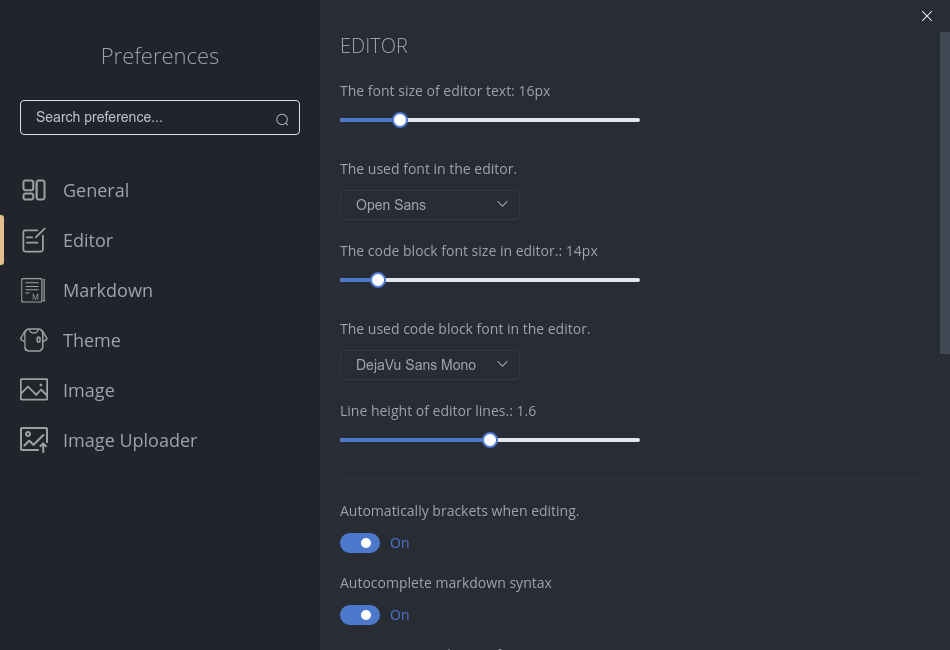
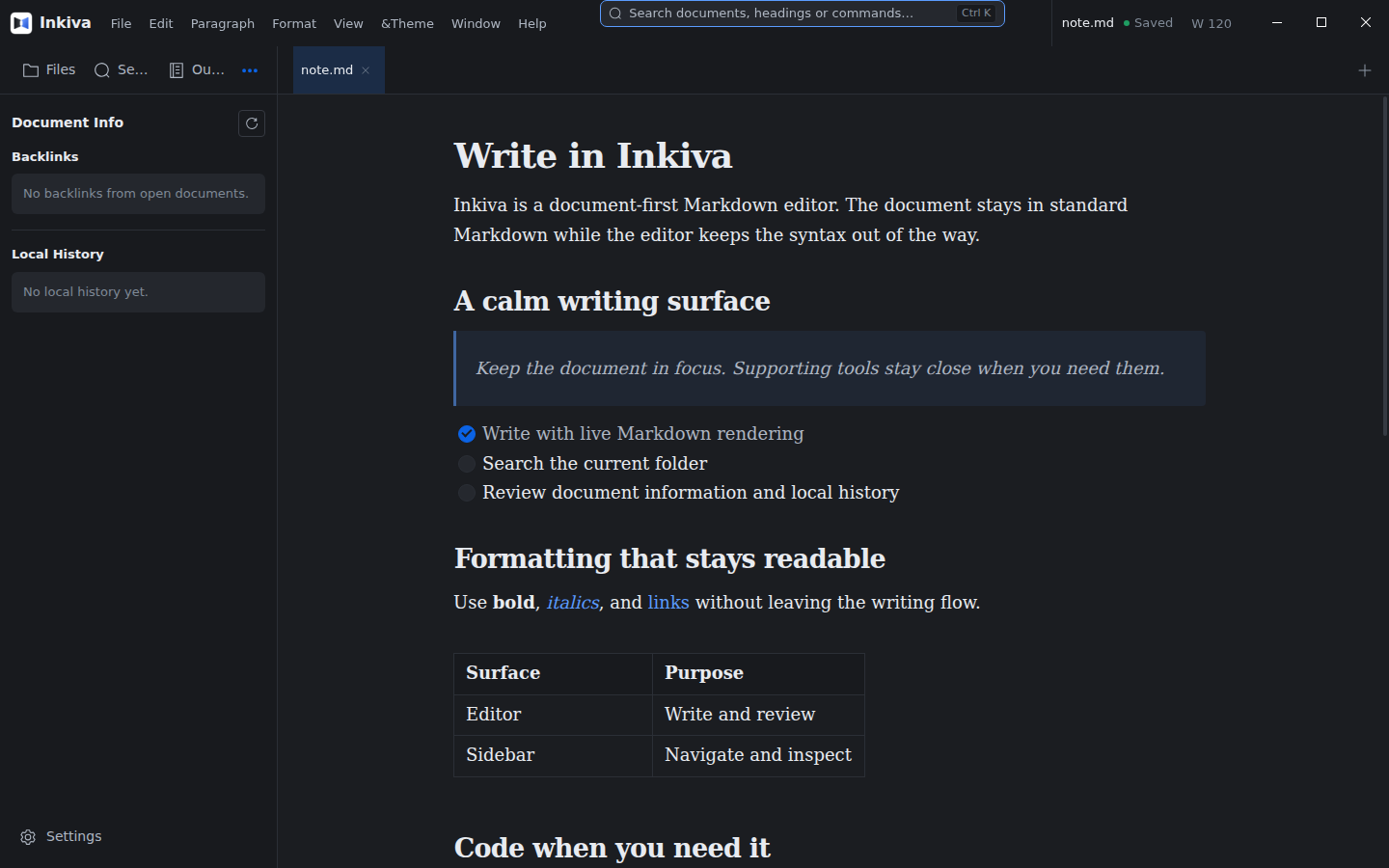
Inkiva includes Inkiva Light, Inkiva Dark, and Inkiva Paper. Choose an appearance from the Theme menu or from Preferences → Theme. Light and Dark can follow the operating system; Paper remains a manual choice. See Appearances.
Preferences#
Open File → Preferences or the settings control at the bottom of the sidebar. Preferences can also be edited in preferences.json in the application data directory. The settings window groups general, theme, editor, and spelling options.