
Editing in Depth#
Inkiva renders Markdown as you work while keeping the saved document as a normal text file. The preview editor supports direct typing, Markdown shortcuts, block transformations, inline formatting, tables, images, diagrams, and other extensions. The raw source editor is available whenever you need exact syntax.
Text selection and formatting#
Select text with the mouse, double-click a word, or use Shift+Arrow Keys. Use the Format menu or the available keyboard shortcuts to apply bold, italic, underline, strikethrough, inline code, inline math, links, images, and clear formatting. The command launcher provides a searchable route to the same actions.
Inkiva updates the rendered result as you edit. The active appearance controls the writing surface and syntax colors; editor font, size, line height, and width are configured in Preferences → Editor.
Quick insert and block actions#
In an empty paragraph, type / to open the quick-insert menu. Search by continuing to type, navigate with the arrow keys, and press Enter to insert the selected block. The menu can create headings, paragraphs, lists, task lists, quotes, tables, code blocks, front matter, thematic breaks, and supported diagram blocks.
For commands that are not visible in the editor, open the titlebar command launcher:
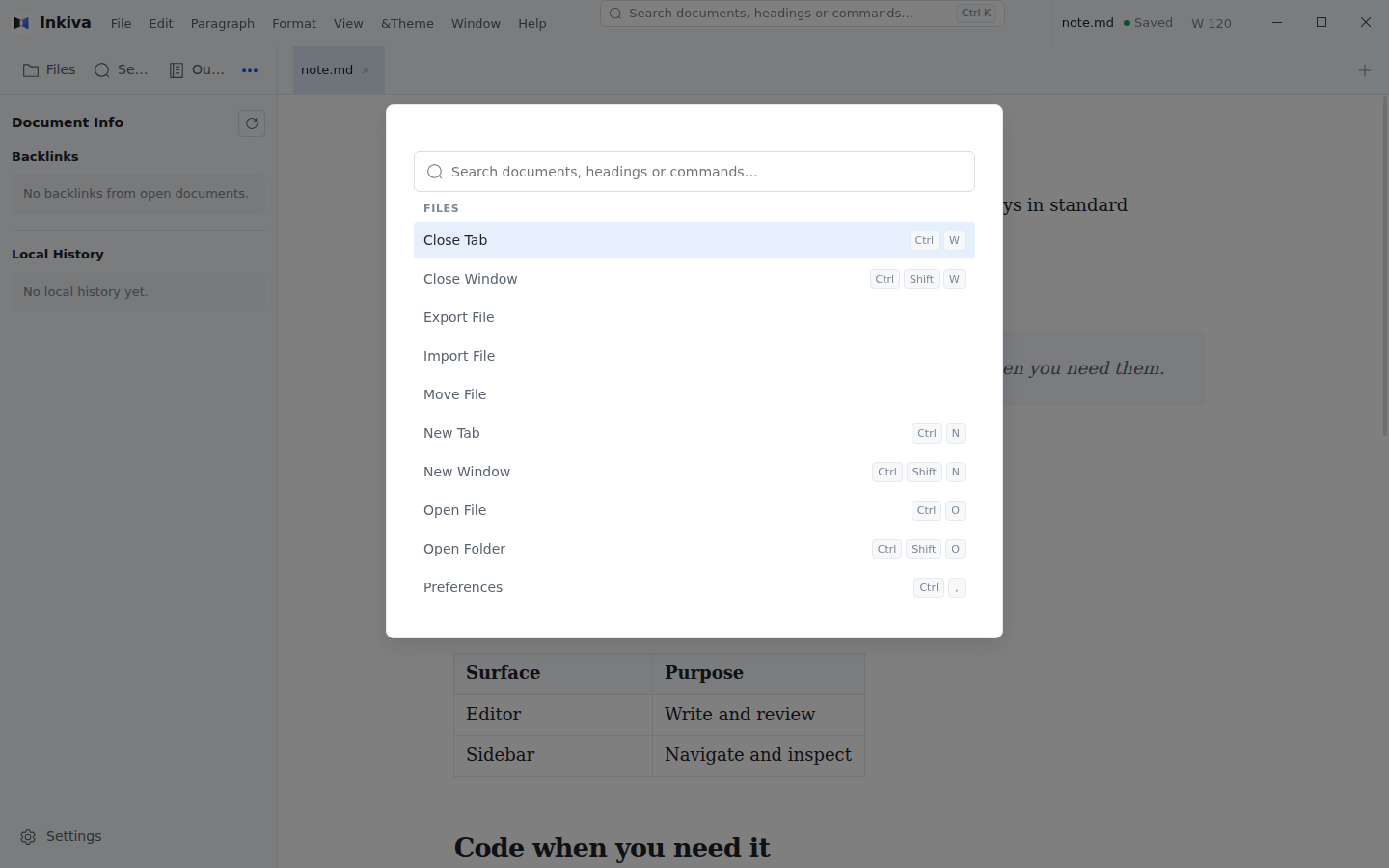
The paragraph menu also exposes actions such as Turn Into, duplicate, create paragraph, and delete paragraph. These actions operate on the current block or selection.
Markdown formatting#
Inkiva follows CommonMark and GitHub Flavored Markdown behavior for the supported syntax. List markers, heading style, indentation, front matter, HTML, footnotes, and other extensions can be configured in Preferences. See Markdown syntax for the rendered feature reference.
Autocompletion#
The editor can close brackets, quotes, and Markdown delimiters as you type. These behaviors are enabled by default and can be configured independently with autoPairBracket, autoPairMarkdownSyntax, and autoPairQuote.
Tables#
Use the quick-insert menu or Paragraph → Table to create a table. The table controls let you add or remove rows and columns, resize the table, move rows or columns, and align cell content. Inline formatting remains available inside table cells.
Images#
Type ![]() or use the image command to insert an image. Inkiva can select a local file, accept a pasted path or URL, copy an image into a relative directory, or send it to the configured PicGo uploader. Image behavior is controlled in Preferences → Image; see Image support for path and folder examples.
Links and emoji#
Click a link in the preview to inspect or edit its Markdown target. The inline tools also provide an emoji picker and link actions when the relevant command is available from the editor context menu.
Focus and typewriter modes#
Focus mode fades surrounding paragraphs so the current line remains prominent. Typewriter mode keeps the active line near the center of the editor. In the default Typora shortcut style, use F8 for focus mode and F9 for typewriter mode. Their commands are also available under View and in the command launcher.
File encoding and line endings#
Inkiva can guess a file's encoding when it opens. UTF-8 is the packaged default; the default encoding and automatic detection can be changed in Preferences → Editor. The current encoding and line-ending commands are available through the command launcher.
Find and replace#
Inside the document: press CmdOrCtrl+F to search the current document and use the replace controls when needed.
Across the opened folder: open the Search sidebar panel to search Markdown files in the current folder. Search settings control exclusions, hidden files, ignore files, symlinks, and the maximum file size.